

Skip to content
AIPharm

medcare inventory

medcare inventory: Know your stock.Follow every movement.

Know what is on the shelf, what is running low and what is on its way. Manage supplies across your warehouse and clinics, from ordering items to checking what arrived.

For warehouse and clinic teams · Cloud or customer-provided server

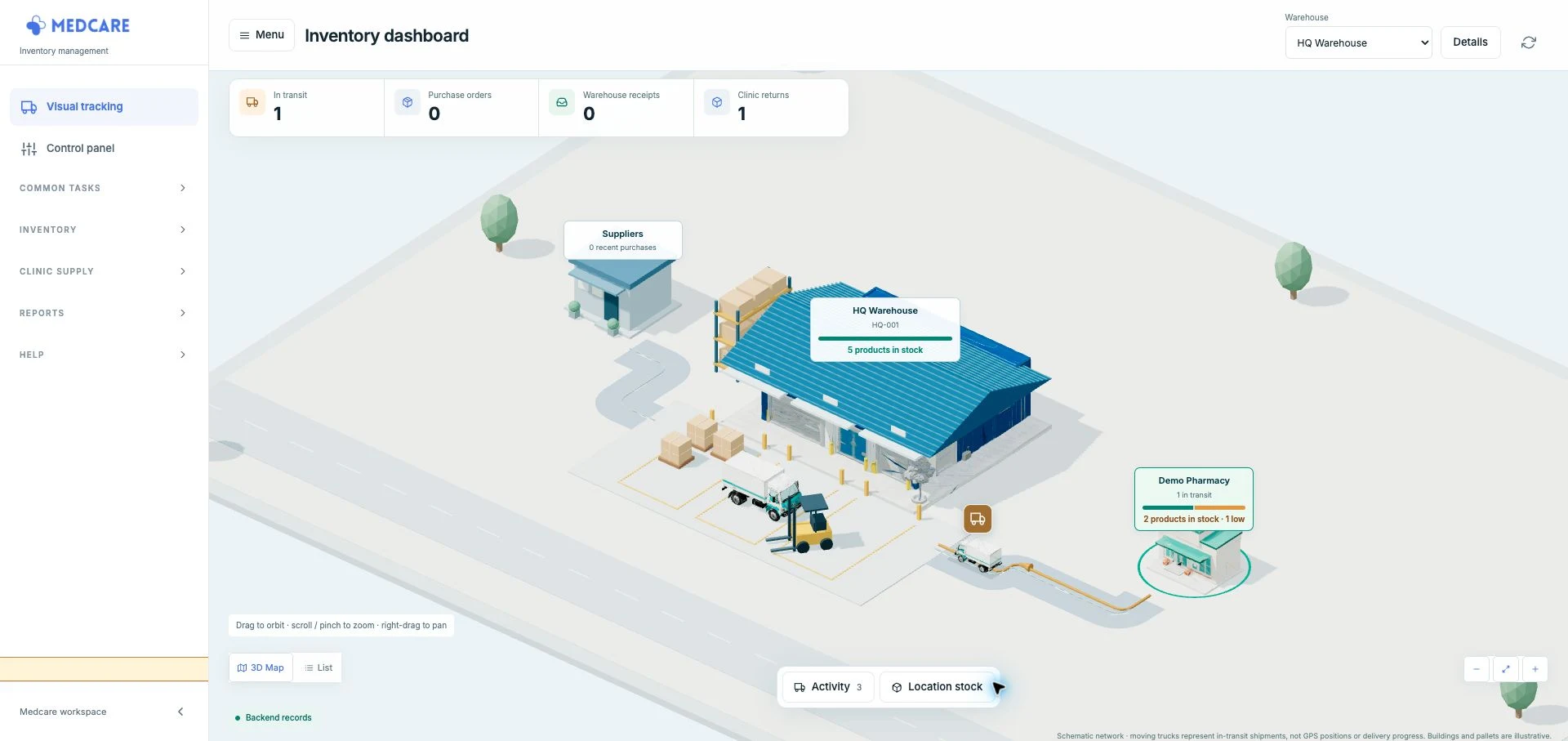
Medcare visual overview showing HQ Warehouse, Demo Pharmacy and a stock delivery routeYour warehouse and clinics, in one viewOpen full-size screenshot in a new tab
Actual Medcare screen with demonstration records. The map illustrates stock routes; it does not show live GPS positions.

Take a look around

See how everyday stock work gets done

Choose a task to explore. Enlarge any screen to take a closer look.

Actual Medcare screen · Demonstration recordsOpen full-size screenshot (opens in a new tab)

What do we have, and where is it?

Check how many boxes, packs or bottles are available at each warehouse and clinic. Keep the product, batch and expiry date together in one view.

  • Find an item at a specific location
  • See which stock expires first
  • Switch to low-stock and expiry views

A batch is a group of the same product with its own batch number and expiry date.

Stock on hand screenshot

Medcare stock screen showing demo supplies, locations, batch numbers, quantities and expiry dates

Use “Zoom to actual size” to read smaller details. Demonstration records.

From ordering supplies to stocking the shelf

Each step keeps the next team informed. Here is how supplies move through the system, and where to look when something needs attention.

Check what you have before ordering more

Look up an item to see how much is available at each warehouse or clinic. Check expiry dates and low-stock views to decide what needs topping up.

  • Quantities at each location
  • Batch numbers and expiry dates
  • Items that need topping up

Order supplies and check them when they arrive

Keep supplier details, prepare an order and record the delivery when it arrives. Note how many items were accepted or rejected, along with their batch numbers and expiry dates.

  • Supplier contact records
  • Orders sent to suppliers
  • Delivery checks and batch details

Get supplies from the warehouse to the clinic

A clinic asks for supplies, a manager approves the quantities and the warehouse sends the items. The clinic confirms what arrived and records any shortages. Items sent back to the warehouse are tracked as returns.

  • Requests and manager approval
  • Items sent and received
  • Shortages and returned items

Check supplier bills against orders and deliveries

Compare a supplier bill with what was ordered and what arrived. Review differences before approval, then record the payment reference after your team pays the supplier outside the system.

  • Bills linked to orders and deliveries
  • Differences checked before approval
  • Payment references kept on record

Keep the recorded quantities in line with the shelf

Bring in the stock you already have when getting started. Count items on the shelf, compare them with the system and record any corrections with a reason. Review the history to see why a quantity changed.

  • Starting quantities from a spreadsheet
  • Shelf counts and explained corrections
  • A history of stock changes

A clear role for each team member

Give each person the tools for their job, whether they manage the system, run a warehouse or work in a clinic.

Inventory admin
Set up locations and team access, check supplier bills and keep payment references.
Warehouse manager
Order supplies, check incoming deliveries, send items to clinics and manage warehouse stock.
Branch manager
Approve clinic requests, check deliveries and oversee stock counts, corrections and returns.
Branch staff
Ask for supplies and confirm what arrives at the clinic.

Choose where your inventory system runs

Use a hosted cloud setup or a server your organisation provides. We can help you review which option fits your team.

Hosted cloud

Use Medcare inventory in a hosted cloud environment. Discuss setup, access and ongoing support with our team before getting started.

Customer-provided server

Use a server provided by your organisation. We review whether it is suitable and agree who handles setup, maintenance and support before getting started.

Inventory questions, answered

Exploring the wider platform? See Medcare features or return to the Medcare overview.

What is medcare inventory?

Medcare inventory helps clinics and warehouses keep track of supplies: what is available, what needs ordering, what has been sent and what has arrived. Teams can also check expiry dates and the history of stock changes.

Can teams review expiry dates and low stock?

Yes. You can check expiry dates and switch to views for stock that is running low or approaching expiry, then plan what to use first or order next.

Does the system process supplier payments?

No. Your team can compare supplier bills with orders and deliveries, check any differences and save a payment reference. The actual payment takes place outside medcare inventory.

Can it run on a customer-provided server?

Yes, a customer-provided server is an option alongside hosted cloud. We review your server, the setup and who will handle maintenance and support before getting started.

Walk through your stock workflow with us

Show us how you order supplies, move stock and check deliveries today. We will walk you through the screens that fit your team and discuss how to get started.

Book an inventory demo